
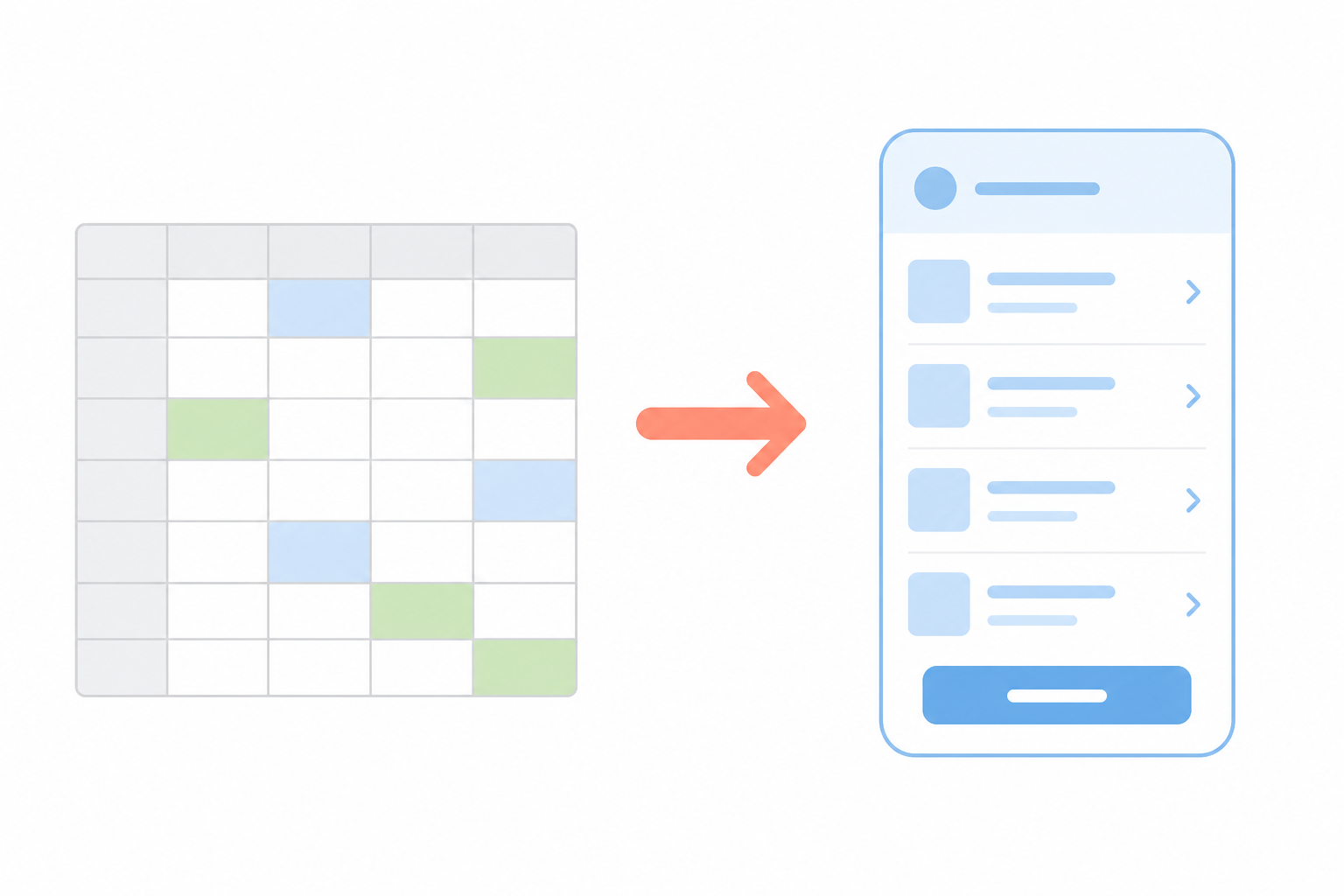
You have a spreadsheet that runs something important. Maybe it is a lead tracker that your sales team updates every day. Maybe it is an inventory log with conditional formatting holding together a reorder system. Maybe it is an expense approval process that lives in one sheet and a separate email chain simultaneously.
It works, mostly. But it is also fragile, hard to share safely, and one wrong edit away from breaking something. Every new person you add makes it more complicated. Every new process you try to run through it feels like a workaround.
The spreadsheet was the right tool when you started. It probably is not anymore.
Here is how to turn it into a real app - one with proper access control, structured data, automated workflows, and a user interface that does not require a manual to understand.
Why Teams Keep Running on Spreadsheets
Spreadsheets survive longer than they should because they are genuinely good at the beginning.
They require no setup. Everyone already knows how to use them. You can structure them however you want, add a column whenever you need one, and share them in seconds. For a small team with a simple process, a well-structured Google Sheet is hard to beat.
The problems show up gradually. A second person starts editing the same rows. Someone needs read-only access but there is no clean way to enforce that. Approvals start happening over email because the sheet cannot notify anyone. Formulas accumulate until nobody is sure what will break if they touch the wrong column.
At some point you are no longer using the spreadsheet - you are managing it. That is the signal.
If you want to see whether your team has already crossed that line, 7 Signs Your Team Has Outgrown Spreadsheets breaks down the most common patterns in detail.
What Turning a Spreadsheet Into an App Actually Means
Before looking at how to do it, it helps to be clear on what the outcome should actually be.
A real app is not a spreadsheet with a nicer interface. The difference is structural:
A spreadsheet is a grid of cells. Anyone with access can edit any cell. There are no required fields, no enforced workflows, no notifications, no audit trail. The data is only as reliable as the discipline of the people editing it.
An app has a database behind it. Records have defined fields with types and validation. Different users see different views based on their role. Actions trigger notifications and next steps automatically. Every change is logged. The process is enforced by the tool, not by hoping everyone follows a convention.
When people say they want to “turn a spreadsheet into an app,” what they actually need is to take the data model they have built informally inside the spreadsheet - the columns, the relationships, the statuses - and give it proper structure, access control, and workflow logic.
That is a fundamentally different thing from making the spreadsheet look better.
Four Ways to Convert a Spreadsheet Into an App
There is no single right answer here. The right approach depends on how complex your process is, how fast you need it, and how much you want to invest in building vs. describing.
Option 1: DIY no-code builders
Tools like Glide, AppSheet, and Softr let you connect a Google Sheet or Excel file and generate a basic app interface from it. For simple read-only dashboards or single-process tools with small datasets, they can get you to a working prototype quickly.
The catch is that the spreadsheet stays as the live database. You are adding a UI layer on top of a file - which means every limitation of the spreadsheet (concurrent edit conflicts, row limits, no real relational data, no true permissions enforcement) is still underneath your app. You also have to do all the building yourself. There is a platform to learn, components to configure, and logic to wire up. Most teams underestimate how long that actually takes for anything beyond a basic list view.
Option 2: Low-code platforms
Microsoft Power Apps and similar tools give you more flexibility than spreadsheet-native builders, and they can connect to more serious data sources. But they are designed for technical users - people comfortable with formulas, data connectors, and visual logic editors that are more like coding than describing. If your team has an IT resource with time to invest, low-code is viable. If not, the learning curve is steep enough that most teams abandon the project halfway through.
Option 3: Custom development
Hiring a developer to build a proper internal tool gives you exactly what you need, built to your exact spec. It also costs $15,000–$50,000 and takes several months from brief to launch. For most internal processes, that investment is hard to justify - and the maintenance cost continues after launch.
Option 4: AI workspace platform
This is where most teams end up when they want a real app fast, without the configuration overhead of a no-code builder or the cost of custom development.
Appaca is an AI workspace for operators. You describe the tool your team needs in plain language. The AI builds it - with a real built-in database, role-based access, structured forms, workflow logic, and a clean interface - inside the platform. No dragging and dropping components. No learning a builder. No spreadsheet dependency.
The result is an actual app, not a spreadsheet wrapper. The data lives in Appaca’s built-in database. Your team gets the views and actions relevant to their role. Managers see the full picture. Everyone else sees what they need to do.
It is free to start. You can go from describing your spreadsheet to using a working app in the same session.
Step-by-Step: How to Turn Your Spreadsheet Into an App With Appaca
Here is the practical process.
Step 1: Map what your spreadsheet is actually tracking
Before describing anything to an AI, spend five minutes understanding your own data. Ask:
- What does each row represent? (A lead, a request, an order, a task?)
- What are the key columns? Which ones are statuses, which are dates, which are text fields?
- Are there multiple tabs that relate to each other?
- Who uses this spreadsheet and what do they each need to do in it?
You do not need to document this formally. You just need to have it clear enough to describe in a sentence or two.
Step 2: Sign up and start a new app
Go to work.appaca.ai and create a free account. Start a new app from your workspace.
Step 3: Describe the tool in plain language
This is the step that replaces hours of configuration. Write a description of the process the app needs to run. Be specific about roles, actions, and what each person needs to see.
For example: “I have a vendor tracker spreadsheet with columns for vendor name, category, contract value, renewal date, and status. My operations team needs to update vendor details and set reminders for renewal dates. My manager needs a view showing all vendors with renewals in the next 90 days.”
You can also head to /spreadsheet-to-app and upload your file directly - the platform reads your column structure and uses it as the foundation for the app it builds.
Step 4: Let the AI build it
Appaca generates the app from your description. You get a working tool with:
- Structured database records (not a flat file)
- Forms for adding and editing records
- List and detail views shaped to your workflow
- Role-based access so different team members see what they need
- A built-in AI co-worker that can query and act on your data
No configuration. No component wiring. No SQL. If something needs adjusting, describe the change and the AI updates it.
Step 5: Import your data and invite your team
You can import your existing spreadsheet data directly - rows become records in the app’s database. Once the data is in Appaca, it lives in a real database. There is one version. Everyone reads from and writes to the same records. No more “latest version” problem.
Invite your team members, set their roles, and go live.
Common Spreadsheet-to-App Use Cases
Almost any operational spreadsheet can be turned into a proper app. Here are the most common ones.
Lead tracker → CRM A sales team’s lead spreadsheet typically has columns for company, contact, deal stage, last contact date, and notes. The problem: multiple reps editing the same rows, no notifications when a deal moves, no way to see pipeline without downloading and filtering. A proper CRM app gives each rep their own view, logs activity automatically, and gives managers a live pipeline without anyone having to update a summary tab.
Expense log → approval workflow app An expense spreadsheet captures what was spent, by whom, and what category. The approval happens over email. The spreadsheet gets updated manually afterwards - sometimes. An approval workflow app connects submission, notification, decision, and record update into a single process. No email chain. No manual update. Every request has a status everyone can see.
Employee roster → directory app A team roster spreadsheet has names, roles, departments, and contact details. It becomes outdated the moment someone joins or leaves, and it is too flat to be useful for anything beyond a simple lookup. An employee directory app is searchable, organised by team, always current, and can surface relevant information - reporting lines, skills, location - without anyone maintaining a tab per department.
Inventory log → inventory tracker Stock spreadsheets track item names, quantities, locations, and supplier details. The problem is always currency - the spreadsheet is never quite up to date because updating it is a separate step from doing the work. A proper inventory app makes recording movements part of the process. Stock levels update as things happen, not when someone remembers to open the spreadsheet.
Project task list → project tracker A project spreadsheet with tasks, owners, statuses, and due dates works until the project has more than a handful of people involved. Then the status columns stop being accurate, nobody knows what is blocked, and the spreadsheet becomes a record of what was planned rather than a tool for managing what is happening. A project tracking app with proper task assignment and status notifications keeps the actual state visible to everyone.
What to Look for in a Spreadsheet-to-App Tool
If you are evaluating options rather than going straight to Appaca, here is what actually matters for any internal business tool:
Real user authentication - not a shared link, not a password on the spreadsheet. Individual logins with session management.
Role-based permissions - different team members should see different data and have access to different actions. An ops manager should not have the same view as a field technician.
Workflow automation - approvals, notifications, and status changes should happen automatically, not manually. If you still have to send an email after submitting a form, the tool has not replaced the process.
Structured data, not a flat file - once your data is in the app, it should live in a real database. Updates should be tracked. Records should not be deletable without a trace.
Time to launch - a tool you never finish building does not help anyone. Look for something where you can go from description to working app in hours, not weeks.
Not locked to a vendor’s database schema - some tools only work if your data lives in their specific database structure or if you keep using their platform as the source of truth. Your data should be yours.
The Bottom Line
Your spreadsheet has already done most of the hard work. Every column is a field. Every row is a record. Every tab represents a relationship between different types of data. The data model is there - it just has a bad interface, no real access control, and no way to enforce a workflow.
Turning that spreadsheet into an app means giving that data model the structure it needs: proper storage, role-based views, forms that capture input correctly, and automation that moves work forward without someone manually triggering every step.
You do not need a developer to do that. You do not need to learn a no-code platform either. You need to describe what your team does and what they need to see - and let the AI build the rest.
Start free at Appaca or upload your spreadsheet to see what it turns into.